Basic
SMS Basic allows users to run one of the default reports as well as edit the selected items on the report.
Advanced
SMS Advanced allows users to run the existing reports while also giving the user the ability to create custom reports. Creating custom reports is feature exclusive to SMS Advanced that allows you to customize all aspects of a report.
- To create a new custom report you will need to select New General Report and select add new. In the next window you will give the report a name and select next.
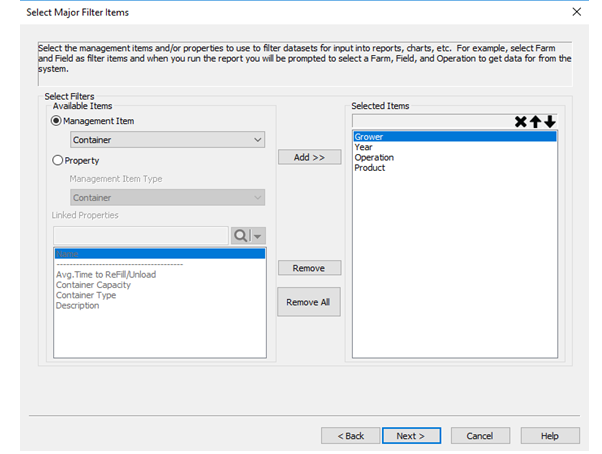
- This opens the Major Filter Items window. Here is where you can customize the area below in green to choose how to breakdown your reports. To add or remove items from the report you will need to find and add or remove them from the selected items on the right. (note: In this window and future windows the order of items highlighted below is the same order they will be displayed in report.)
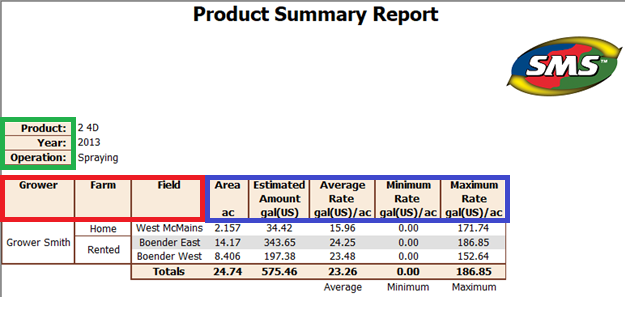
- In the next window labeled Select Fixed Column Filter Items you will be able to edit the area above in red. You can edit this the same way you would edit the previous window. (Note: make sure that Dataset is the last item under the selected items list. You can move it to the bottom by selecting it and using the down arrow.)
- In the next window labeled Custom Selections for each Operation you can edit the area above in blue to add or remove attributes and properties displayed.
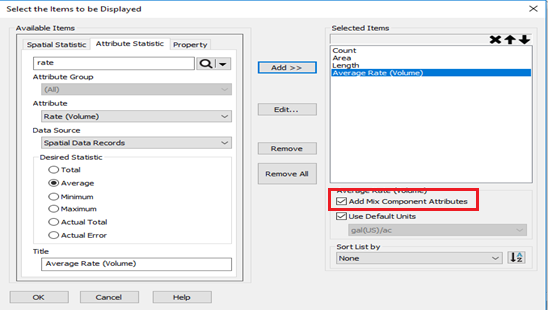
Notes: to add all mix components to your report you will need to check the box labeled Add Mix Component Attributes in the figure above.