What can it do?
- Create a personalized booklet with Reports, Graphs, Maps, Charts, and Analysis Results that have already been created or saved into your Management Tree.
How many fields can it be run on?
- Booklet printing can be run on a single field or multiple fields
Can I move my booklet layout to another project?
- Yes, booklet layouts can be transferred by going to Services> Transfer Utilities> Export Settings and Files
How do I get Booklet Printing for SMS?
- Booklet printing unlock can be purchased for $500 with a yearly maintenance fee of $500. Can only be run on SMS Advanced.
How do you make a booklet?
Go to Analysis> Booklet Printing…
SMS does not come with any default booklet layouts. To begin a new layout you will need to select the Add New button.
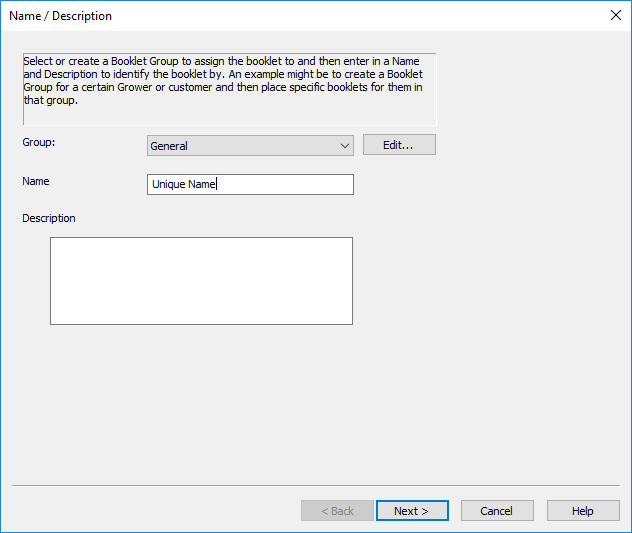
A popup window will appear where we will give the booklet a unique name…
The following page allows for you to add a Booklet Title Page
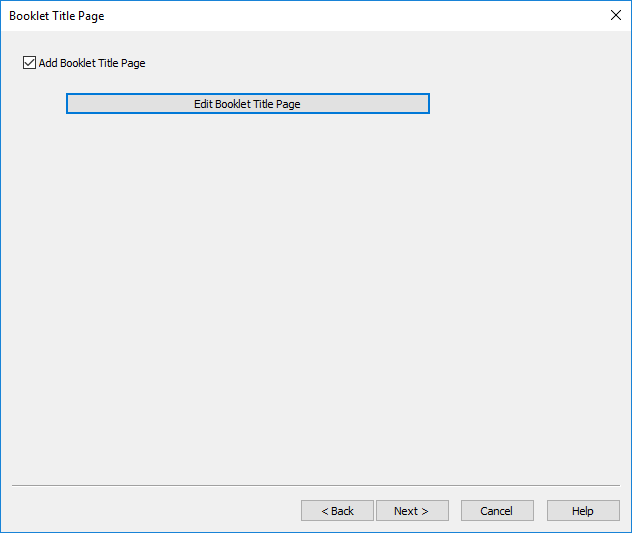
You are also able to load a title page layout by clicking the edit booklet title page and clicking File> Load Layout if you have a pre-existing layout. You can click Next once your title page has been selected.
The Booklet Item Selection page will now appear. This is where we can select what Reports, Graphs, Maps, Charts, or Analysis Results we are wanting to include in the booklet.
Select the Management Item Type drop down to select if you would like to add a report, graph, map, chart, or analysis result from the Project, Year, Grower, Farm, or Field level.
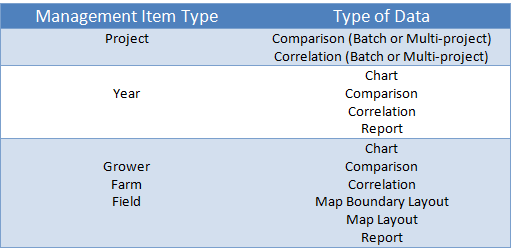
For example, to add a Map Layout you have created to show your fields Yield map, Select the Management type of Field>Map Layout and click the Add>> button.
When we click the Add>> button it will ask us again to give the Map Layout a unique name. In this example we could name the layout Yield Map and click Next.
On the Select Map Print Layout File page, select the pre-existing layout you have created that would be your Yield map layout and click Next.
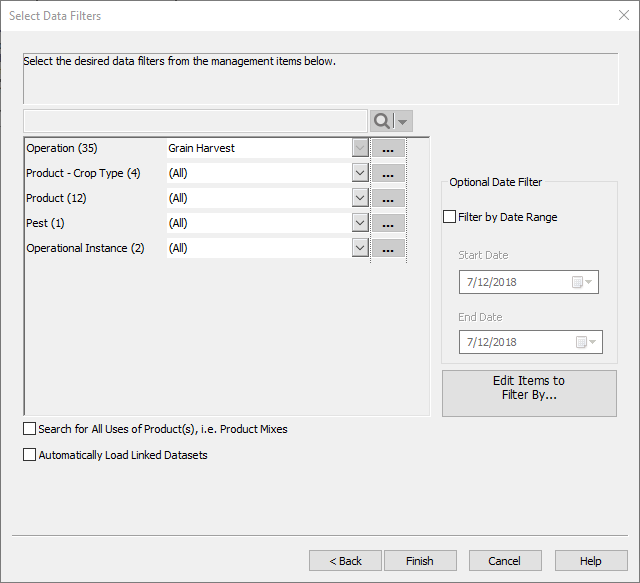
Pictured below, we would select the Operation/Product-Crop Type/Product/Pest/Operational Instance desired in your booklet. When your filters have been selected, click Finish.
Your “Yield Map” will now appear on the right side of your Booklet Item Selection screen.
Continue this process for all other items you want to add to your booklet.
Click Finish when all items are added to the right side under “Selected Items”
The Layout will now appear in the “Booklet Type Selection” (as shown below)
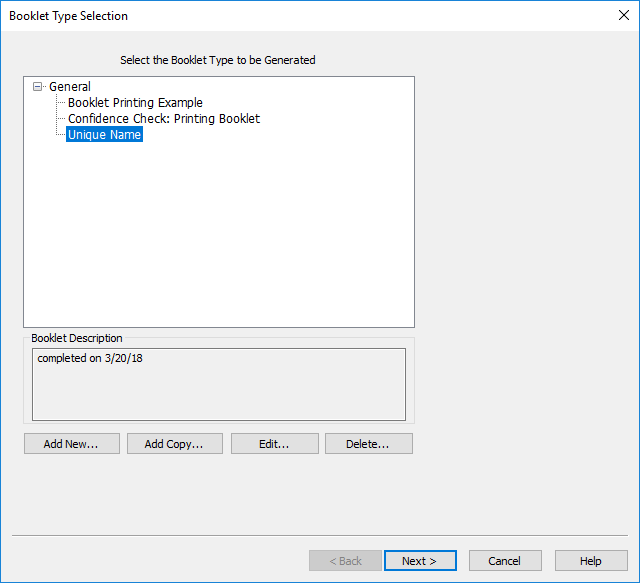
With the booklet you created highlighted above in the white text box, select the Next button.
Select the Data Filters you wish to have booklets printed for and click Finish:
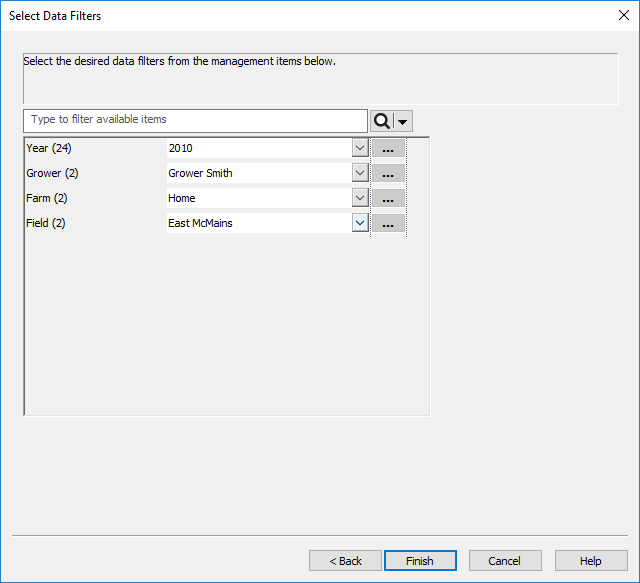
The software will now create your booklet. Each item added to the booklet will be displayed across the bottom as a unique tab. If you included multiple fields in your booklet printing, it will only display the map layouts of the first field within SMS. You will see the other map layouts when you chose to Print or Print to PDF.
To Print, go to File> Print All> chose to print to your printer or to the PDF printer.
Below is the link to our SMS Booklet Printing video: