Comparison Analysis
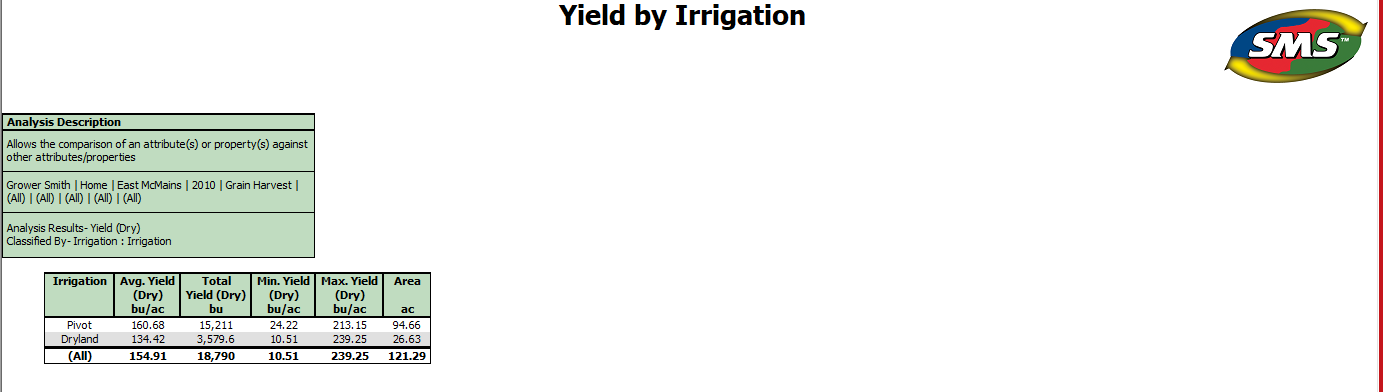
Comparison Analysis' can be performed in the Batch Command to analyze results across all your fields, farms, years, etc. The example outlined will be for a ‘Yield by Irrigation’ Comparison Analysis.
- Click Analysis Wizard
- Select Comparison Analysis and click Add
- Name/Description
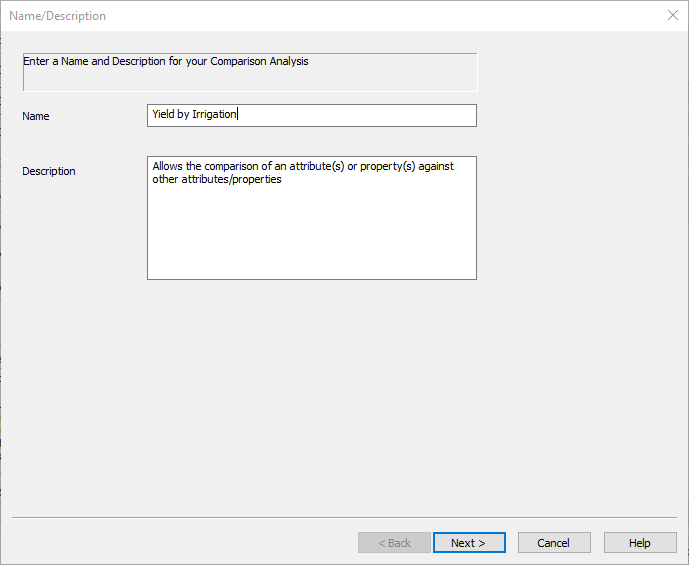
- Enter in a name that describes what is being compared.
- Click Next
-
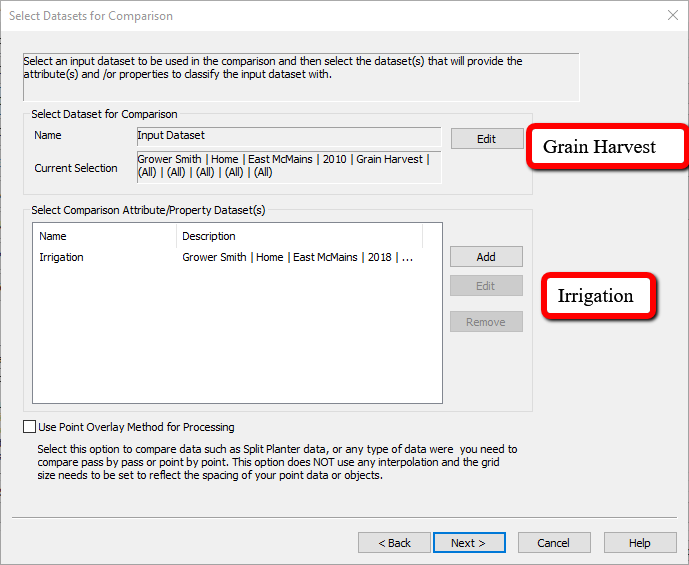
Select Datasets for Comparison
- Under Select Dataset for Comparison, select a Grain Harvest operation
- Under Select Comparison Attribute/Property Dataset, select the Irrigation operation (Note: If your total acres are off on your report you'll need to check the Use Point Overlay Method checkbox)
- Click Next
-
Select Result Attribute(s) to Output
- Add over the attribute you would like to compare from the first dataset (Grain Harvest). Yield(Dry) will be the attribute added over in this example
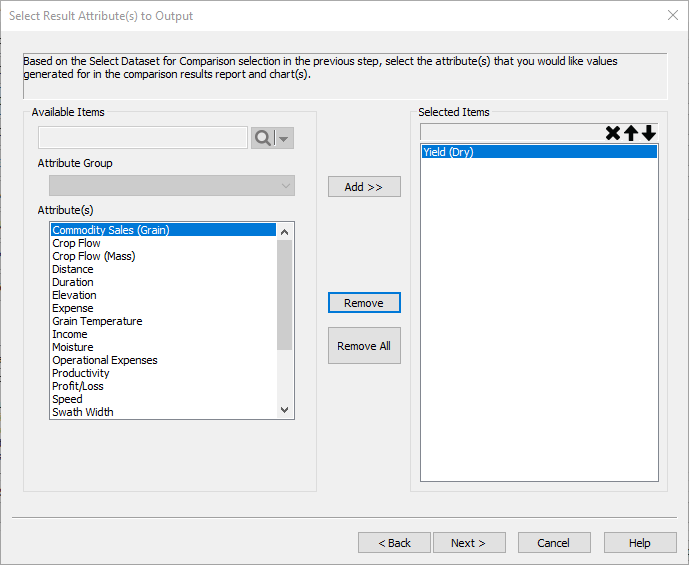
- Click Next
-
Select Result Grouping
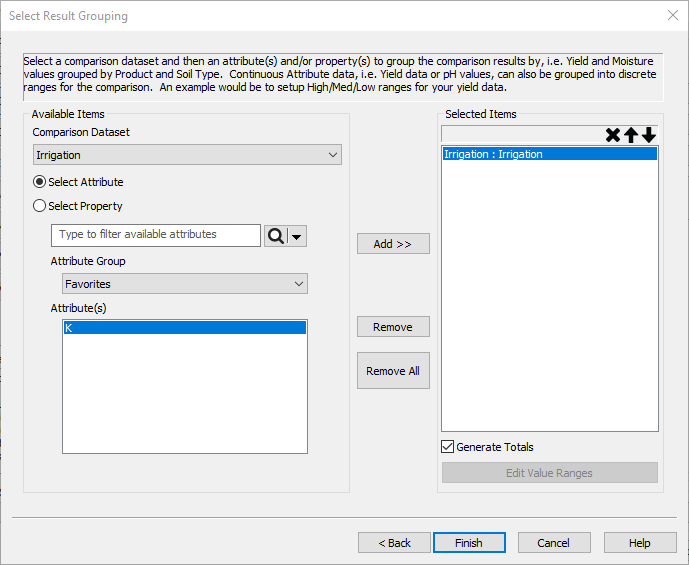
- Add over the attribute/property we want to compare the first attribute to. In this example, we want to compare Yield by Irrigation. The attribute added over here will need to be the attribute that appears in the data grid when we assigned the different irrigation zones on the irrigation map.
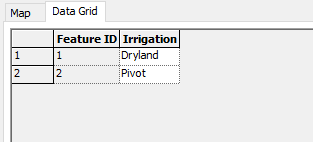
- The attribute here was named “Irrigation”, so Irrigation will be added to the right side.
- Click Finish
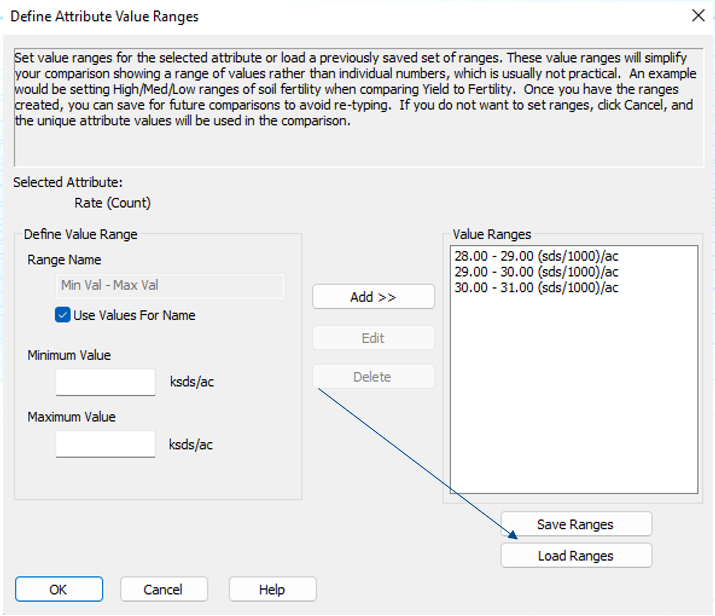
- Some attributes require Defined Attribute Value Ranges
- If needed, these ranges can be saved and loaded for use in other analysis functions. Only available for versions 22.5 and newer.
- Select Reference Dataset
- Leave the Select Dataset on Input Dataset. Click Next on this page.
-
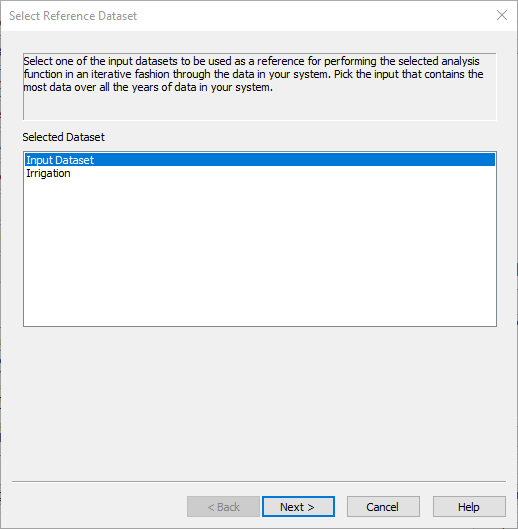
-
Select Related Data Filters
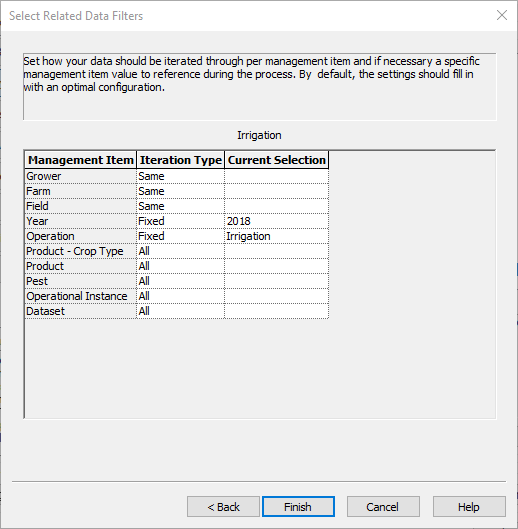
- In most cases, we do not need to edit this page. Click Finish.
-
Running the Analysis
- Select the Analysis from the list on the right
- Run the selected analysis for either a single field or multiple fields
- Select a Grain Harvest operation when prompted to Select Data Filters
- The software will now generate a report