Query Overview
Single Layer Query
-
Create a map of the layer and attribute that need to be queried
-
Choose the desired Select Type. This can be changed from the Map menu at the far top or from the Select Type Icon in the Map Toolbar. (selection types are defined below)
-
Now choose a selection tool from the Map menu or by clicking on the Select Tool Ison on the Map toolbar. (selection tools are defined below)
-
Now make a selection on your map using the Select Type and Tool that was picked in steps 2 and 3.
-
After the selection is made, go to the Map menu and select Query Tools and then choose Query Current Layer or click on the Query Current Layer icon on the Map Tool Bar
-
The query result will appear in a window that is inside the Map window. It is labed Query Results. To clear out the results window, select the Clear Query Results icon from the Query Results window.
Related Tutorial:
Multiple Layer Query
-
Click on one map from you tree and create a new map. Select a second layer and click add to current map. An example would be if you wanted to query yield by variety. Select the grain harvest layer and create a map of it and then add the planting to it by using add to current map. Make sure to change the attributes on the maps. From the example you would use Yield Dry and Product Name.
-
Choose the desired select type. This can be changed from the Map menu at the far top or from the select type icon in map tool bar. (selection types are defined below)
-
Now choose a selection tool from the Map menu or by clicking on the select tools icon on the map toolbar. (selection tools are defined below)
-
After the selection is made go to the Map menu and select Query tools and then click on Query Multiple Layers or click on the Query Multiple Layers icon from the Map Tool Bar. If you do not want to include all of the layers in the query then unselect them in the Selected Query Layers box before running the Multiple Layer Query.
-
The query result will appear in a window that is inside the Map window, labeled Query Results. To clear out the results window select the Clear Query Results icon from the Query Results window.
Related Tutorial:
Select Types
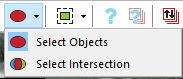
The selection type determines how any shape (point, line, or polygon) in a layer is selected. The selection types can be found in the Map menu or on the Map screen in the mapping toolbar.
-
Select Objects- When this option is used, entire objects will be selected by any of the Selection Tools. For example if the Select Rectangle tool is selected and a selection box that crosses the edge of a polygon in a layer is drawn, the whole polygon will be selected not just the intersected area.
-
Select Intersection- When this option is used, only the intersected area of an object is selected. For example, if the Select Rectangle polygon is selected and a region is drawn across a quarter of a line segment, then only that length of the line that fell in the selection area will be selected.
Select Tools
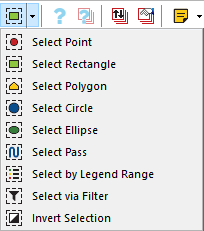
The Select Tools are used to select objects from a layer. The selection tools can be found in the Map
menu or on the Map screen in the mapping toolbar. The Select Tools are used to select objects from
a layer. The selection tools can be found in the Map menu or on the Map screen in mapping toolbar.
-
Select Point - Click this button to use the cursor to select an individual object in a layer. By holding the Ctrl key, multiple objects can be selected within the displayed layer.
-
Select Rectangle - Click this button to draw a rectangular region and select all of the objects that fall within the selection rectangle. By holding the Ctrl key, multiple objects can be selected within the displayed layer.
-
Select Polygon - Click this button to draw a polygon region and select all of the objects that fall within the selection polygon. A left-click on the mouse will insert a vertex for the selection polygon, while a right-click will finalize the polygon. By holding the Ctrl key, multiple objects can be selected within the displayed layer.
-
Select Circle - Click this button to draw a circular region and select all of the objects that fall within the selection circle. By holding the Ctrl key, multiple objects can be selected within the displayed layer.
-
Select Ellipse - Click this button to draw an elliptical region and select all of the objects that fall within the selection ellipse. By holding the Ctrl key, multiple objects can be selected within the displayed layer.
-
Select Pass - Click this button to select a pass. This tool will only work correctly for point or smart rectangle map types where a header sensor or implement switch was used while collecting the data. By holding the Ctrl key, multiple passes can be selected within the displayed layer.