Data can be synced in SMS through AgFiniti Sync, Read Files, Device Setup, and the individual dataset level.
What data can be exported from SMS and mapped in AgFiniti?
Most data in SMS can currently be exported to AgFiniti, with the exception of the following data types and operations: Scouting Operation, Plot Prescriptions, Headlands, Obstacles, and 3D surfaces.
AgFiniti Sync Functions
Download and Read Data/Files from AgFiniti
This option allows configuration of preferences for data pulled from AgFiniti. Supported files include .agdata and .agsetup files, compatible third-party data files, Field Notes, and agronomic data such as prescriptions and multi-year yield layers generated in AgFiniti. Preferences can be customized by grower and data year.
Upload Mappable Data to AgFiniti
This option enables the transfer of mappable data from the current SMS project to AgFiniti. Settings allow selection of growers, years, and specific operations to be sent to AgFiniti.
The AgFiniti Sync button allows users to automatically sync data to and from AgFiniti upon opening or closing a project. To set this up, Select the AgFiniti Sync button.
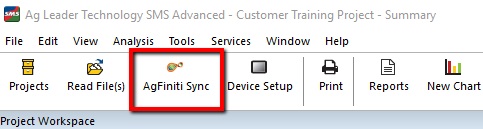
There are three sync options:
- Download Data – Retrieves data from AgFiniti to the SMS project.
- Upload Data – Sends SMS project data to AgFiniti.
- Download and Upload Data – Performs both actions in a single sync.
Data can be set to sync automatically when opening or closing the SMS project by checking the sync option box. If the box is not checked, the data will only sync when commanded.
Select the Edit button to specify which data types and growers are included in the sync.
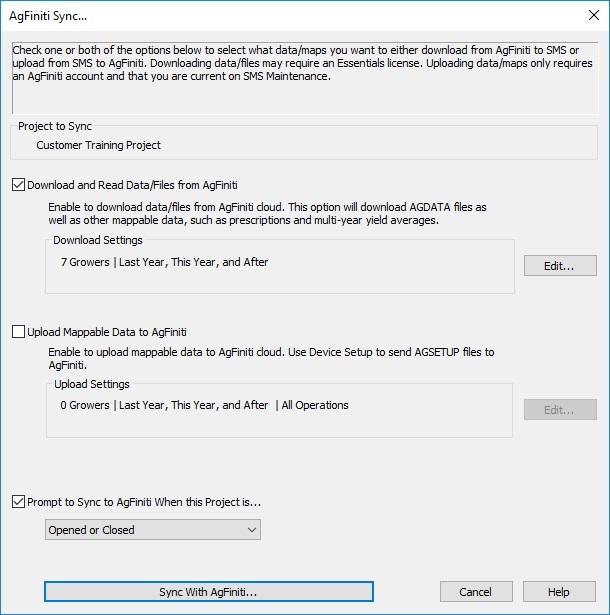
Select Edit.
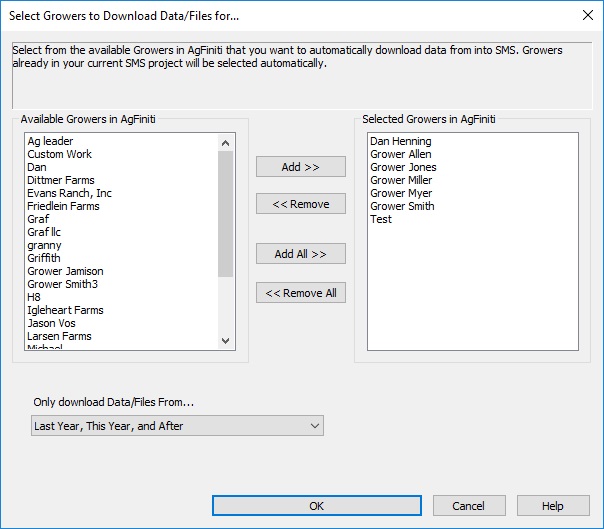
Choose the growers and click Add in the middle for the growers that should be synced.
- Selecting only active growers or desired growers helps avoid unnecessary time spent syncing.
Select the data range to sync by choosing one of the following options:
- All Years
- Last Year, This Year, and After
- This Year and After
Select OK and data will sync.
Read Files:
Select Read Files.
Select Download and Read Files from AgFiniti > Start Downloading Files from AgFiniti…
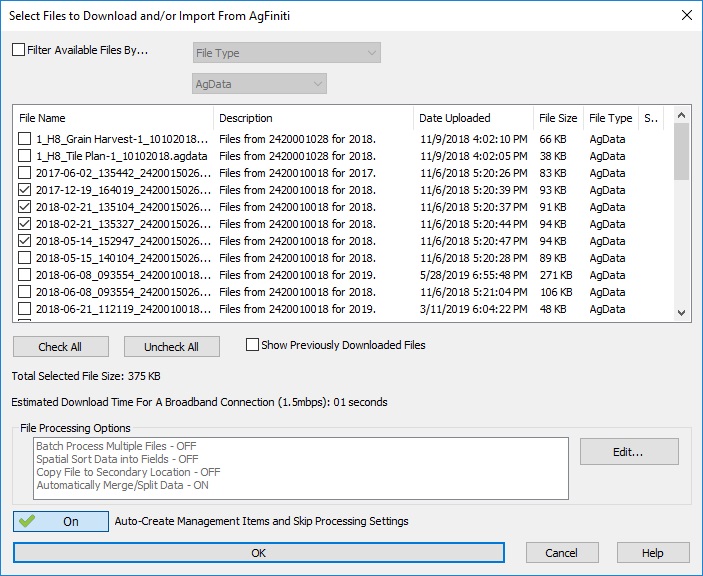
A list of available files will appear. Check mark the files to download from AgFiniti and select OK.
Data will begin processing.
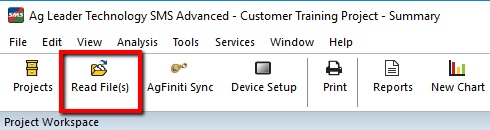
In this window, you can select any files you would like to sync down from AgFiniti. (Note: This sync process will only sync AgData Files and AgSetup files. It will not sync files created in AgFiniti such as shapefiles, Multi-Year Analysis, or Soil Surveys.)
Individual Export:
Data can be exported to AgFiniti at the individual dataset level by right-clicking on the dataset in the Management Tree or on the current map.
Select Export > Export AgFiniti.
The AgFiniti setup window will appear. From here, select whether to export the data as a Setup File to an Ag Leader Display or AgFiniti Mappable Data.
Advanced SMS option: Batch Command (Advanced Users Only)
Select Batch Command, then choose Export, and select OK.
Select the data to be exported, then select Next, followed by Finish.
This opens the same AgFiniti export setup window described above.