This tool requires that you have a Terrain Analysis dataset to be created and saved for the field to be allowed to work. After selecting a Main or Submain you can run the contours by selecting Create Contoured Laterals.
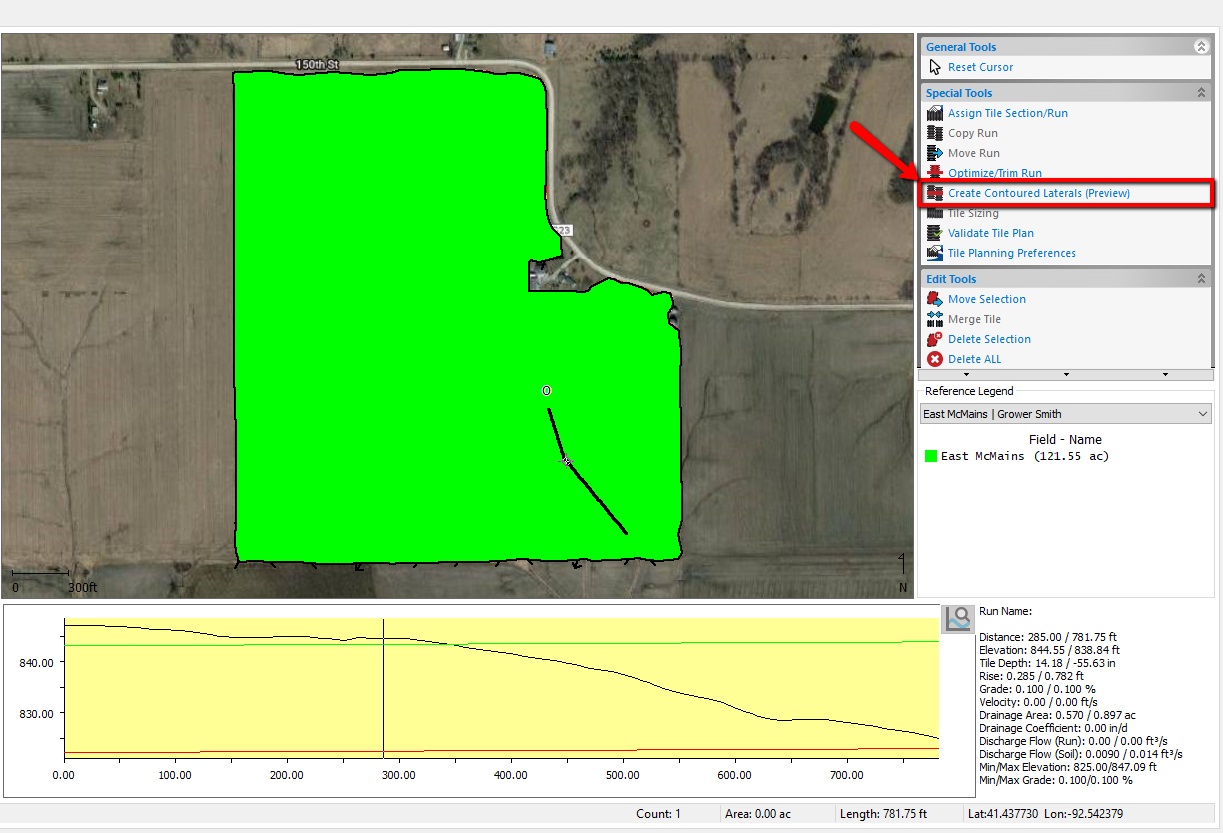
After selecting to run the tool you'll need to fill out the following constraints:
- Lateral target Spacing (ft.): Target spacing where the connection attaches to the main between laterals. Spacing between the laterals throughout the contour will attempt to keep this spacing, but as contours change, the spacing between will fluctuate.
- Lateral Min spacing (ft.): Minimum distance where a lateral will end itself if it gets within the entered feet of another lateral
- Target Grade (%): grade that is attempted to be used to find the preferred path
- Min Grade (%) minimum grade that is considered
- Max Grade (%) maximum grade that is considered
- Turn radius (ft.)- tightest turn radius allowed for laterals to curve around a change in slope direction
- Landscape Type. Auto filled based on average slope of the field. (Flat, Rolling, Hilly) Below values will be automatically set, but can be over-written for better results as you see fit
- Search Distance (ft.)- Distance to search out from the last vertex (5’ for example) to space the next legs of the lateral
- Search Iterations - this setting is the number of times the search distance extends to find the exact right match of target grade and radius (radius is defined by the turn radius). So if the search distance was 5 ft., and number of iterations is 3, it would take a value at 5, 10, and 15 ft., the one that is closest to an exact match to the target is the point that is used. that doesn’t violate the turn radius settings, or the target/min/max grade settings
- Assigned Tile - Enter the size of tile that you would like to use (generally 4 or 3in)
- Smoothing Iterations - Generally set to 1-2 - this is the number of times the points are refined to make the line less jagged
Special notes:
- Minimum length of tile laterals is 100’. At times you may notice where there is a gap where a lateral would normally be placed on a main. If the above conditions create limits that prevent a lateral from generating that is 100’ or shorter it will automatically be skipped
- Any tile can be added manually - There may be times where you don’t get the ‘fit’ that you are seeking out with automatic settings. You can select any number of automatically created laterals, and use the Vertex editor and adjust them, or Extend short laterals to fill in a gap, or remove some that you don’t like, and create a new lateral on your own. Sometimes this is more efficient to use the guidance from the automatically created lines to make your own.
- When troubleshooting why a lateral did/didn’t get created the way it did, turning on the Surface Contours will help visualize the topography. Also helpful is using the 3D view in the tiling editor to see the terrain of the field.