Requirements to setup this connection:
- CURRENT AgFiniti Essentials license
- CURRENT SMS Basic or Advanced license
Follow the steps here to setup a third party connection like John Deere Operations Center.
When the connection is established, all supported data present in John Deere Operations Center will be synced into AgFiniti and located on the My Files page as shown below.
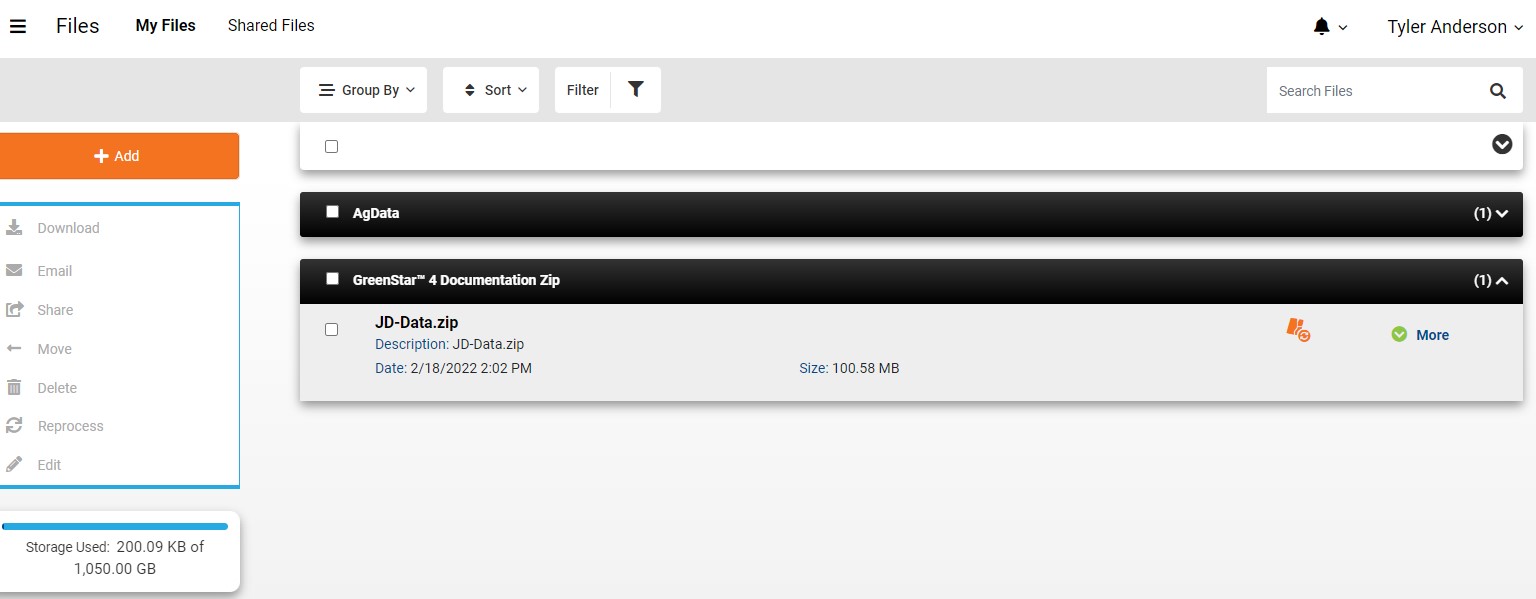
If the user has an AgFiniti Essentials license, AgFiniti will begin to process the synced data. When the sync process is complete the data can be viewed in AgFiniti under Maps. This data can then be imported into SMS directly from AgFiniti.
With only an SMS license, the data will still transfer but not process directly into AgFiniti Maps. It is important to note that ALL data will be imported and processed, even those from partnerships setup on the John Deere Operations Center side. This means that future data uploaded to John Deere Operations Center will also automatically transfer to AgFiniti. If you delete transferred files from John Deere Operations Center out of AgFiniti, the files will not re-sync from John Deere Operations Center. If deleted files from My Files are desired at a later date, a manual import will be needed.
What data will AgFiniti sync and process?
Any format synced from John Deere Operations Center will be processed and viewable. The list of synced data includes GS2, 3, 4 and 5 displays.
Now that my data can seamlessly flow from Operations Center to AgFiniti, when will I see this information?
Data can take up to 24 hours to start appearing in the My Files section in AgFiniti.
How do I get my data from my InCommand to Operations Center?
Option 1: Manually download files from the InCommand Display to a USB(c) stick and upload them to My Files in AgFiniti. Option 2: Automatically have the InCommand display sync with AgFiniti upon display shutdown or select Export to AgFiniti at anytime in the Display. **Requirements: internet connection to the display. Display is logged into AgFiniti.
How does the connection work?
Automatically sync data
- Toggle the desired selection to Automatically Download to AgFiniti and/or Upload to John Deere.
- Toggle on Download to AgFiniti and select what Years to downloaded into the account from John Deere Operations Center.
- Toggle on Upload to John Deere and select what Years, Organization, Data Location, Manufacturers, and Operations are desired to uploaded into John Deere Operations Center.
- Click Save
- After Clicking save, AgFiniti will now upload and download files to and from John Deere Operations Center.
Manually upload data
- Click on My Files
- Select the file to upload to John Deere Ops Center and Click Share
- Select Connected Applications. Make sure to select the organization before clicking Upload
What if you have multiple Deere users who all have their own John Deere Operations Center accounts?
John Deere Operations Center offers a feature called Partnerships. A Partnerships allows customers with their own John Deere Operations Center account to share their data with an individual like a dealer and/or agronomist that also has a John Deere Operations Center account. That dealer/agronomist can have a connection with AgFiniti and allow the customers data to now sync with AgFiniti.
Note: Only one John Deere Operations Center account can have a connection with an AgFiniti Account.
The flow would look something like this:
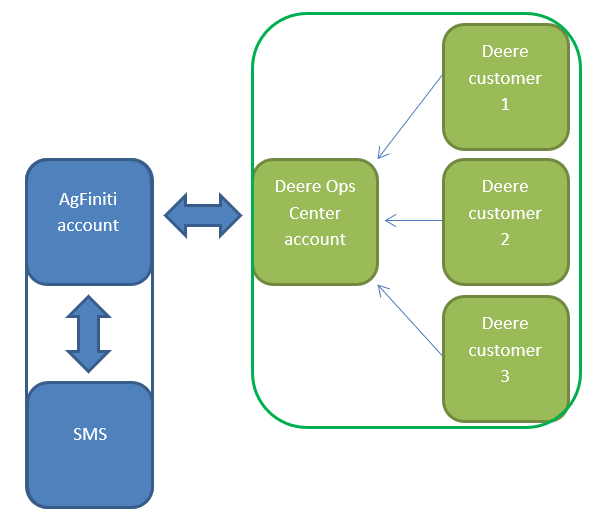
When this structure is used, all data present in these Deere partnerships will be synced to AgFiniti through the single connection and from there, process and be viewable in AgFiniti (with Essentials) and able to be imported into SMS. This data will be able to be sorted by the Deere organization name for easier sorting during SMS import.
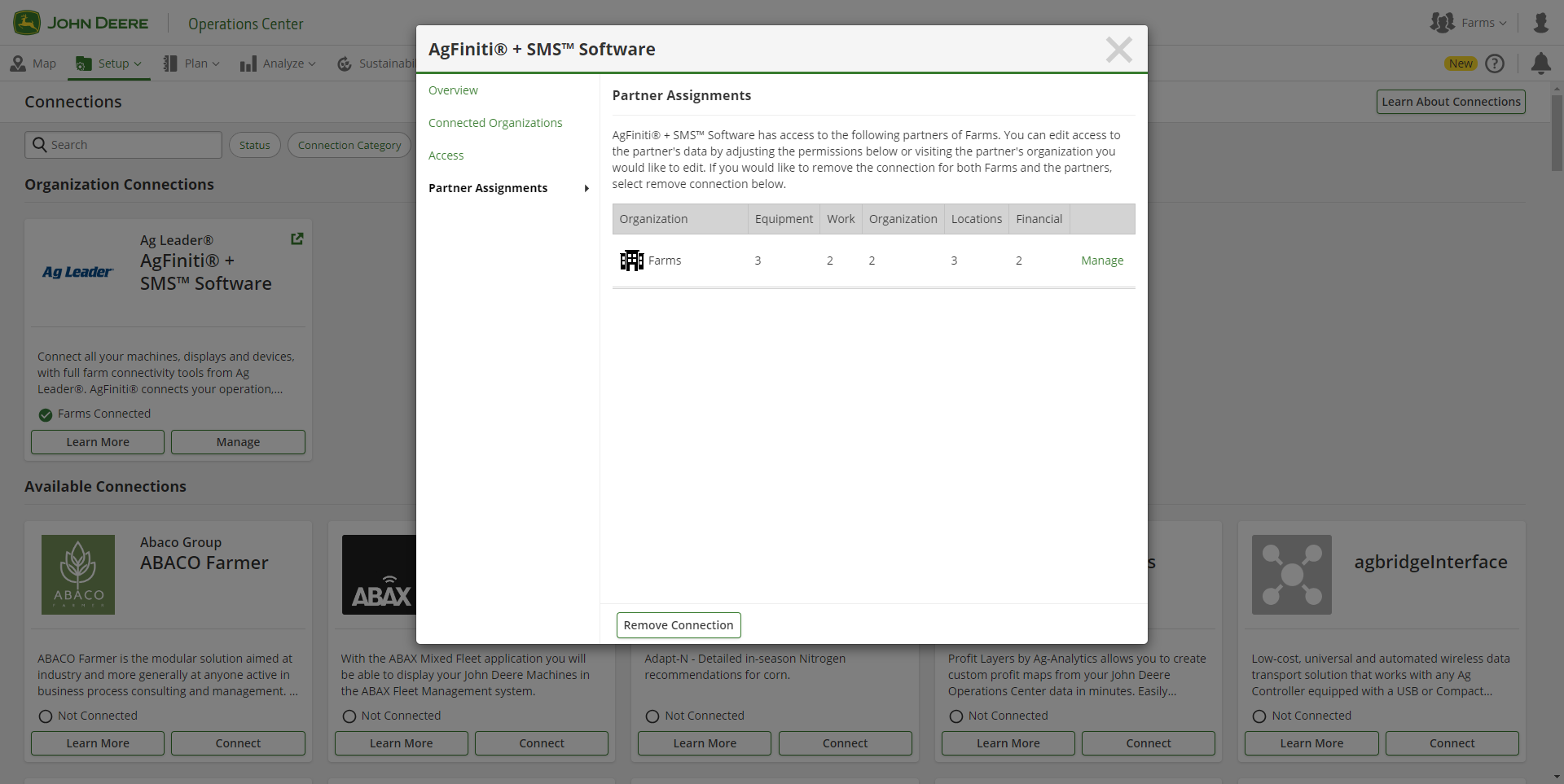
Note: there are additional security settings that will need to be adjusted on the Deere side for data to move into SMS. Make sure that AgFiniti + SMS Software has maximum access to John Deere Operations Center in order to ensure data is properly synced.
To verify maximum access within John Deere Operations Center, go to Setup - Connections. Under the AgFiniti + SMS Software connection, select Manage and then Partner Assignments. Verify that the maximum settings are set for each item. The maximum access settings for each item are shown below.
- If any of them are lower than what is shown, select Manage and increase to the maximum access level.