Field Displays and Monitors
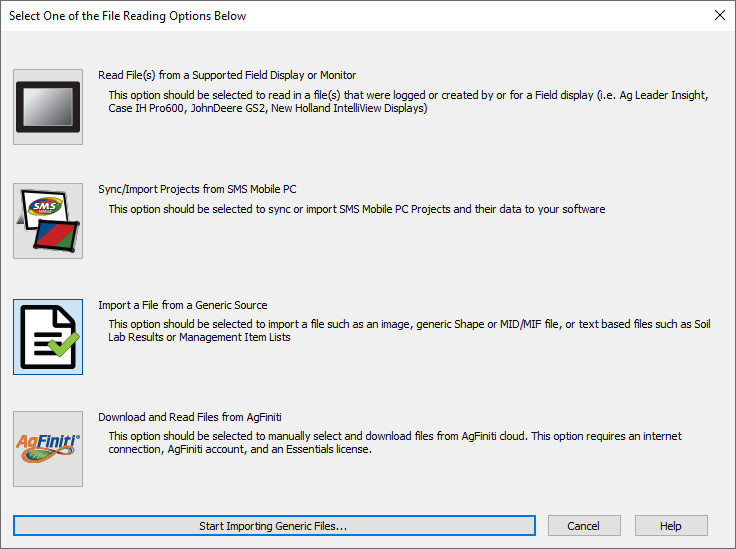
Field display data can be read into SMS by going to Read Files and selecting Read File(s) from a Supported Field Display or Monitor.
Tutorial
Useful Tips
- It’s possible that many files will need to be selected on a USB stick or that the necessary file is hidden in folders. Ag Leader recommends using the option to Automatically Search a Folder or Directory and checking Include Subfolders in Automatic Searchesand then selecting the Drive or Folder that contains your files.
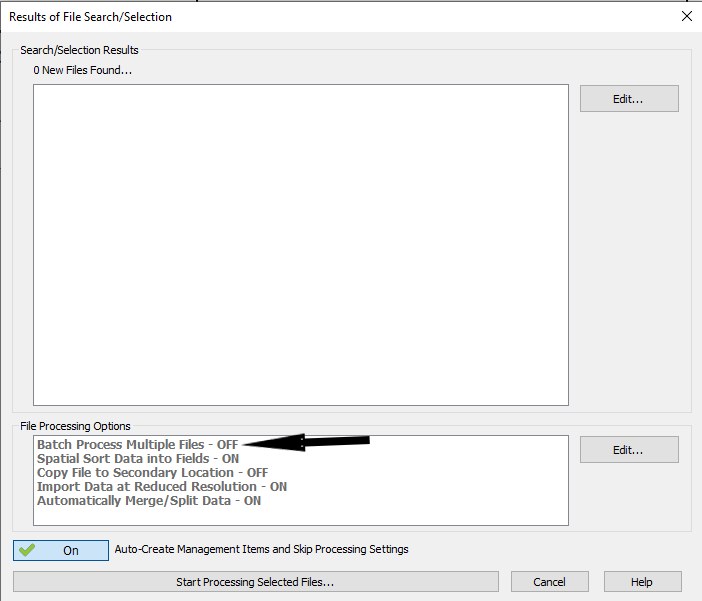
- Batch Process Multiple Files if set to off you will have to go through multiple files assigning Grower, Farm, and field etc. If processing multiple set it to on.
- In some cases, you will not see the appropriate file types listed underneath the company. It’s possible that a generic format is being used in those cases. Read the section about Generic files.
- To view additional mappable attributes, click on the “Select Mappable Attributes/Properties” button located next to the attribute dropdown.
- If using AgFiniti, the AgFiniti Sync option can allow for more automated transferring to/from AgFiniti
Common Issues
- Proprietary file formats are always being updated with firmware updates. As a result it is important to make sure that you are always running the latest version of SMS to ensure that you can read in the files from your displays.
SMS Mobile
When running compatible versions of SMS Desktop Software and SMS Mobile, users are able to sync the data back and forth. To sync with SMS Mobile, go to Read Files (insert pic) and select Sync/Import Projects from SMS Mobile.
Tutorial
Useful Tips
- Users running SMS Mobile for PDA devices (v9.0) will not be able to sync with the latest version of SMS Basic/Advanced.
- If you prefer to stay with your PDA device, you can export shape files from SMS Mobile and can import them by following the tutorial under ‘Generic files….’
- If you prefer to still use the syncing function, Ag Leader will convert users current on the Yearly Maintenance Program to SMS Mobile PC which can be installed on a Windows based tablet. (link to SMS Mobile PC download page).
Common Issues
- Verify that SMS Mobile is closed before syncing
- Verify that they are on versions that can sync (need a table somewhere)
Generic files (shape files, text)
Generic files can come in many different formats and SMS is capable of importing most of them. Begin the generic import process selecting Read Files > Import a File from a Generic Source and your desired generic format.
Tutorial
Useful Tips
- Generic files come in all shapes and sizes, it will be important to make sure they are properly formatted when exported from the original source in order to ensure proper import
- If prompted for datum and projection, this information will need to be provided from the source of your generic file
Common Issues
- If after importing, only a green map is viewable, it may indicate that required attributes were not assigned and you will want to go through the import process again and make sure to assign any required attributes
Images
Similar to generic formats, images can also come in many different formats. To begin importing them go to Read Files > Import a File from a Generic Source > Images.
Tutorial(s)
Single Band
Multiple Band (Advanced)
Useful Tips
- Some maps will require you to manually geo-reference them, others contain geo-reference data and do not require this
- If you have to manually geo-reference, it is suggested to map a boundary or similar data first then proceed to import as this will make the process easier
Common Issues
- If images do not import correctly or do not look correct after importing, it may be required to get a new copy of the image from your original source as SMS does not process images, only reads in what is present